Overview
When adding YouTube videos to Canvas, choose the method that supports accessibility and provides the best experience for students.
-
Use the YouTube option in Canvas only when the video already has accurate, ADA‑compliant captions.
-
Viewing statistics are not available for YouTube videos embedded in Canvas.
-
Use the Kaltura (My Media) YouTube option for all other YouTube videos. This method allows caption editing to meet ADA requirements and currently plays videos without commercials.
Kaltura My Media YouTube Integration
Use the Kaltura My Media option for any YouTube video that needs caption editing or does not meet ADA standards, and to provide students with a viewing experience that currently avoids commercials.
Refer to the Kaltura: Adding a YouTube Video to MyMedia guide for instructions.
YouTube Integration
Use the YouTube integration in Canvas only when the video already has accurate, ADA‑compliant captions and does not need caption editing. This option may also expose students to commercials, so use it sparingly.
- Navigate to the page, assignment, or discussion where you want to add the video.
- Click the Edit button to access the Rich Content Editor.
- Click the Apps button (represented by a plug icon) in the toolbar.
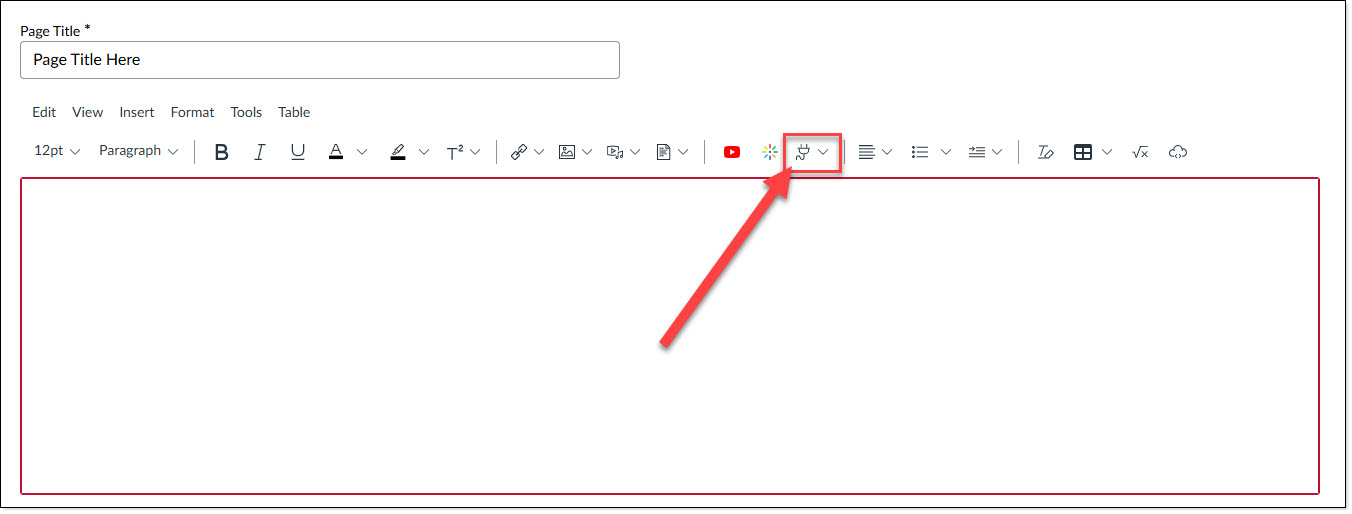
- Select YouTube from the list of available apps.
- Paste the URL instead of searching by title for best results.
NOTE: Typing the video name may yield inaccurate search results. Search YouTube first and then paste the desired video URL into the search box in the YouTube Canvas integration.
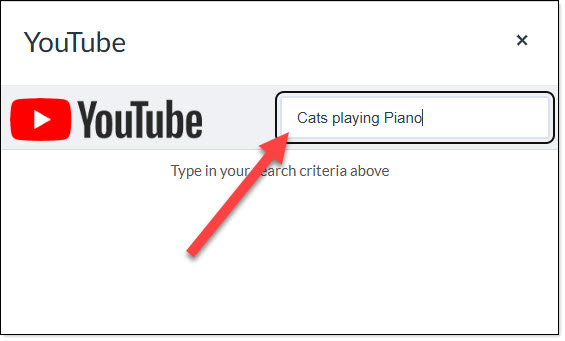 Paste the URL into the search box provided.
- Click Embed and select your preferred size of the video.
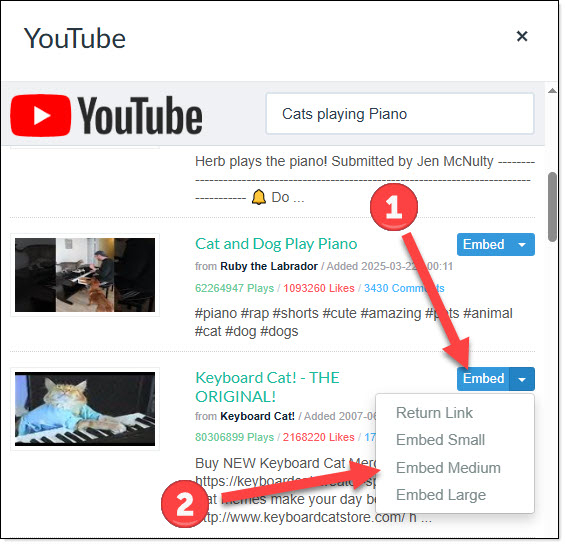 To the right of the video name, the embed button drop-down offers size options.
- Save the page, assignment, announcement, etc.